This article defines Ghost Tasks and explains how a project manager can use one in an electronic project schedule. Then, the process of creating a Ghost Task in Microsoft Project is described.
What is a Ghost Task?
A ghost task is a task relationship between project plans. These relationships between projects are referred to as ghost tasks because they are linked to tasks in other project plans rather than tasks within a project plan. Another name for a ghost task might be “project dependencies.” Project dependencies occur when one project depends upon tasks in other projects.
When is a Ghost Task Used?
Perhaps you have a resource assigned to a task in Project A, and to a task in Project B. Project B’s task depends upon the resource finishing the task in Project A. This is one instance where you may utilize a ghost task. A second time where a ghost task may be used is when a task in Project A is also a prerequisite for a task in project B.
The ghost task is a placeholder for cross-project dependencies. It could be the case that project B is wholly dependent upon Project A being complete. A ghost task is used whenever you need to show that a relationship exists between two projects.
How to Use a Ghost Task
A ghost task is tracked easily in Project 2007. First, you must have two master projects entered into Microsoft Project. Now, follow these steps:
-
Click on the task to be linked to the other project.
-
Click on the toolbar button, “Scroll to task.”
-
Right click and then select the “Task information”
-
Click “Predecessors”
-
Type in the file name and the id number of the task to be linked as a predecessor in the ID column.
-
Hit OK. When the window clears, the
Advertisement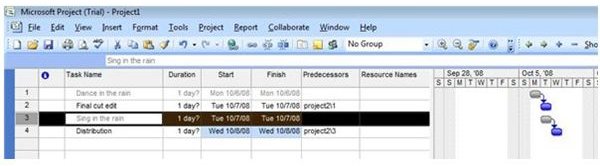
.
-
Save both projects.
Now, the ghost task appears between the two projects. Moreover, in the predecessors column, instead of the ID number of the predecessor task appearing, the file name and ID number of the ghost task appears. This makes cross-project reference simple.
One of the biggest project management challenges is tracking complex and multiple projects. By understanding how to use Ghost Projects to your benefit, you can begin to jump over this hurdle, and keep track of project dependencies. By knowing when to use a ghost task, you can increase project productivity.