Use Project 2007 to display the Resource Histogram and other related resource management views.
Microsoft Office Project 2007 has several available histogram views that display your project resource assignments, usage and availability grouped by generic skill or work requirements. Some of these views show your resource project data against a timescale - thus, showing your data in a histogram view.
Available resource views in Project 2007 include:
- Resource Allocation
- Resource Form
- Resource Graph
- Resource Sheet
- Resource Usage
- Resource Allocation View
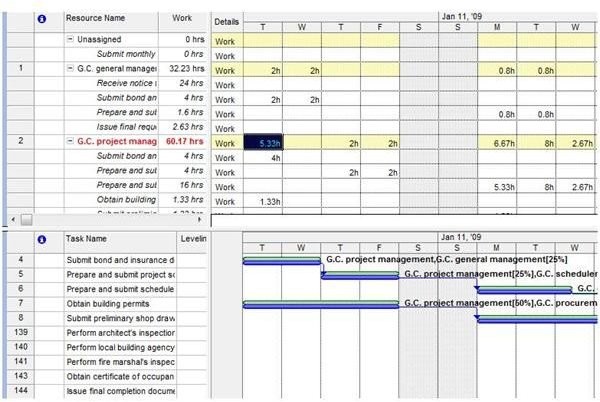
In Project, some views combine more than one view on one screen. This is called a combination view. The Resource Allocation view is just such a view that displays the Resource Usage view in the top pane and in the bottom pane, you’ll see the Leveling Gantt Chart. A sample project is displayed in Resource Allocation view in Figure 1.
Although many views can be displayed using the View Bar on the left side of the Project window, in order to display the Resource Allocation view, you’ll need to use the More Views dialog box. To display the Resource Allocation view, follow these steps:
- Choose View: More Views from the Menu bar
- Select Resource Allocation in the More Views dialog box
- Click Apply
Resource Form View
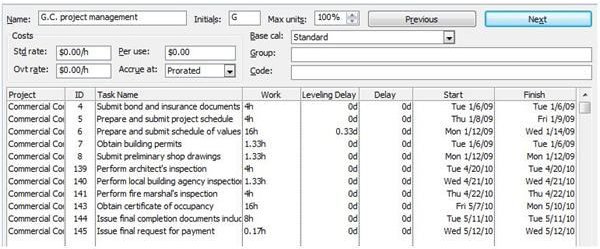
The Resource Form displays a form with information specific to one resource. Because you can only see one resource at a time, you can use the Next and Previous buttons at the top of the form to navigate between your different project resources. A Resource Form view example is shown in Figure 2.
And, like the Resource Allocation view, there is no associated button on the View bar to display the Resource Form. You’ll again need to use the More Views dialog box to display the Resource Form view. To display the Resource Form view, follow these steps:
- Click More Views at the bottom of the View Bar (if the View Bar is not displayed, you can show it by choosing View: View Bar from the Menu Bar)
- Select Resource Form in the More Views dialog box
- Click Apply
Click here to learn how to customize your Project views .
This post is part of the series: Project 2007: How to Display the Resource Histogram
Use Project 2007 to display the Resource Histogram and other related resource management views.